Simulate failures
- Understand the application
- Run the application
- Simulate failures
Despite your best efforts, there's going to be a time when something goes wrong - a network glitch, a server goes offline, or you introduce a bug. One of Temporal's most important features is its ability to maintain the state of a Workflow when something fails. Simulate some failures and see how Temporal responds.
Recover from a server crash
Unlike many modern applications that require complex leader election processes and external databases to handle failure, Temporal automatically preserves the state of your Workflow even if the server is down. You can test this by stopping the local Temporal Cluster while a Workflow is running.
- Make sure your Worker is stopped before proceeding so your Workflow doesn't finish. Press
CTRL+Cin the Worker terminal. - Switch back to the terminal where your Workflow ran. Start the Workflow again with
go run start/main.go. - Verify the Workflow is running in the UI.
- Shut down the Temporal Server by pressing
CTRL+Cin the terminal window running the server. - After the Temporal Cluster has stopped, restart it with the same database file you used previously.
Visit the UI. Your Workflow is still listed:
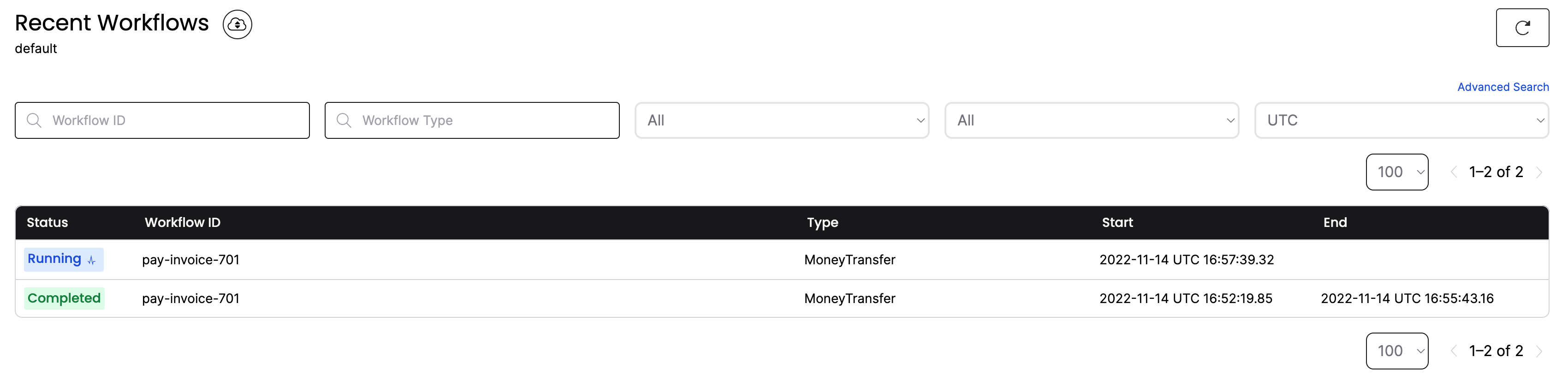
If the Temporal Cluster goes offline, you can pick up where you left off when it comes back online again.
Recover from an unknown error in an Activity
This demo application makes a call to an external service in an Activity. If that call fails due to a bug in your code, the Activity produces an error.
To test this out, simulate a bug in the Deposit() Activity function. Let your Workflow continue to run but don't start the Worker yet.
Open the activity.go file and switch out the comments on the return statements so that the Deposit() function returns an error. Ensure you're calling bank.DepositThatFails.
Save your changes and switch to the terminal that was running your Worker. Start the Worker again:
go run worker/main.go
You will see the Worker complete the Withdraw() Activity function, but it errors when it attempts Deposit(). The important thing to note: the Worker keeps retrying:
2022/11/14 10:59:09 INFO  Started Worker
2022/11/14 10:59:09 Withdrawing $250 from account 85-150.

2022/11/14 10:59:09 Depositing $250 into account 43-812.

2022/11/14 10:59:09 ERROR Activity error. ActivityType Deposit Attempt 1 Error This deposit has failed.
2022/11/14 10:59:10 Depositing $250 into account 43-812.

2022/11/14 10:59:10 ERROR Activity error. ActivityType Deposit Attempt 2 Error This deposit has failed.
2022/11/14 10:59:12 Depositing $250 into account 43-812.

2022/11/14 10:59:12 ERROR Activity error. ActivityType Deposit Attempt 3 Error This deposit has failed.

...
The Workflow keeps retrying using the RetryPolicy specified when the Workflow first executes the Activity.
View more in the Web UI. Click the Workflow to see the state, the number of attempts, and the next scheduled run time:
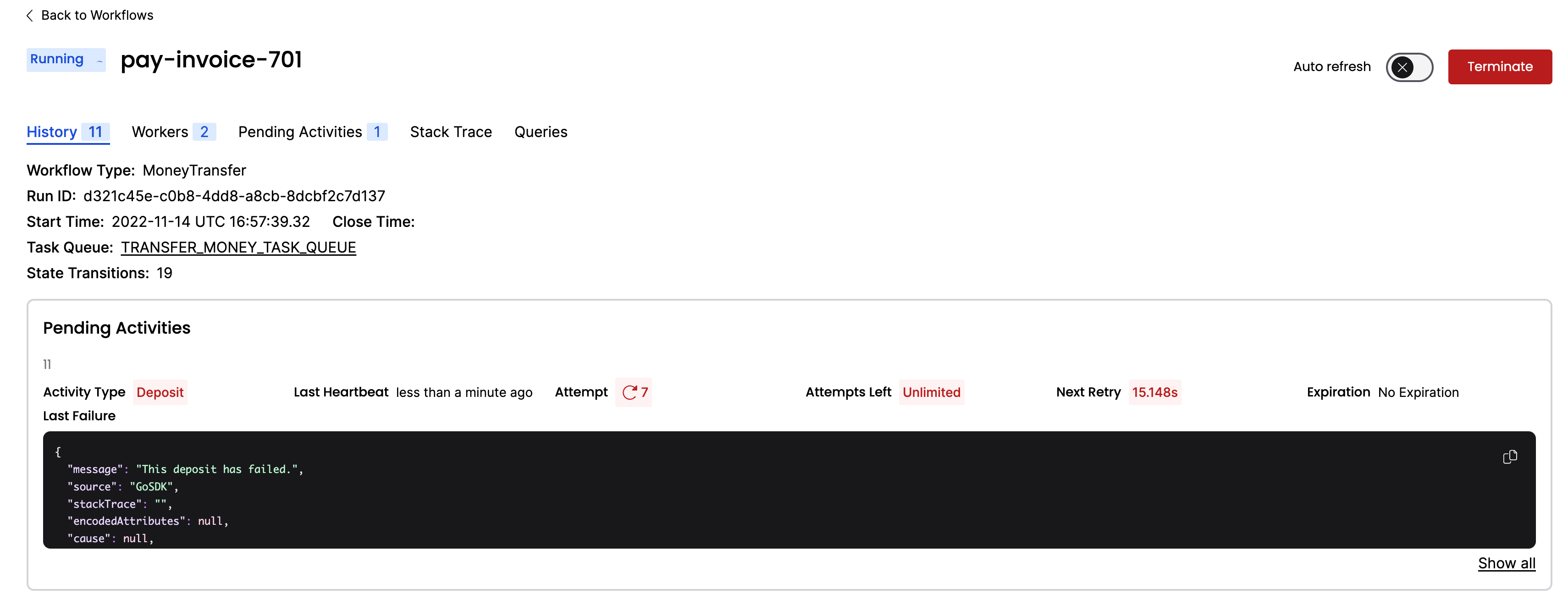
Your Workflow is running, but only the Withdraw() Activity has succeeded. In any other application, the whole process would likely be abandoned and rolled back. With Temporal, you can debug and fix the issue while the Workflow is running.
Pretend that you found a fix. Switch the comments back on the return statements of the Deposit() function in activity.go and save your changes.
How can you update a Workflow that's already halfway complete? You restart the Worker.
First, cancel the currently running worker with CTRL+C. Then restart it:
go run worker/main.go
On the next scheduled attempt, the Worker picks up right where the Workflow was failing and successfully executes the newly compiled Deposit() Activity function:
2022/11/14 11:01:28 INFO  No logger configured for temporal client. Created default one.
2022/11/14 11:01:28 INFO  Started Worker
2022/11/14 11:01:28 Depositing $250 into account 43-812.
Switch back to the terminal where your start/main.go program is running, and you'll see it complete:
...

2022/11/14 11:01:28 Transfer complete (transaction IDs: W1779185060, D1779185060)
Visit the Web UI again, and you'll see the Workflow has completed:
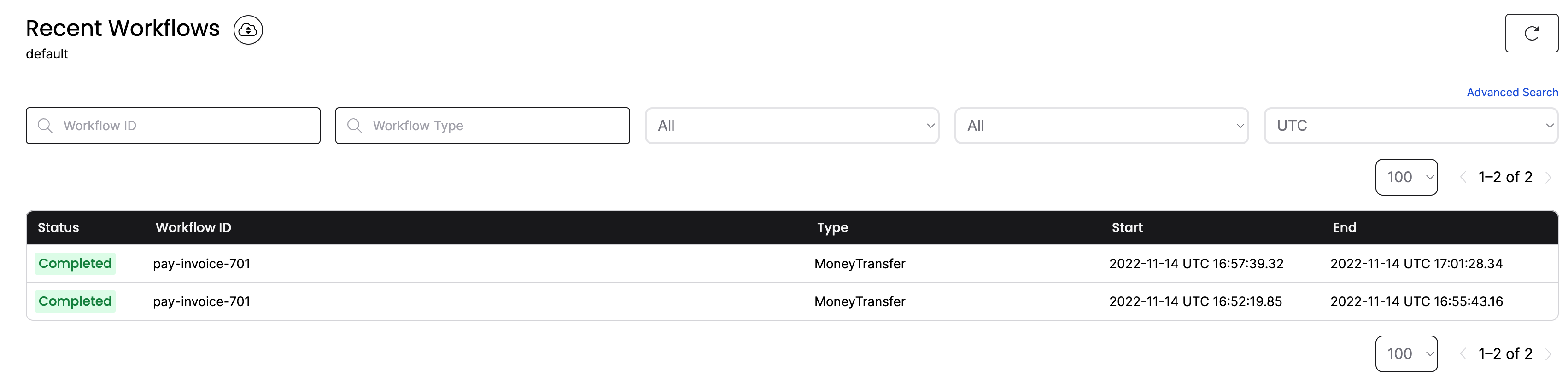
You just fixed a bug in a running application without losing the state of the Workflow or restarting the transaction.
Conclusion
You now know how to run a Temporal Workflow and understand some of the value Temporal offers. You explored Workflows and Activities, you started a Workflow Execution, and you ran a Worker to handle that execution. You also saw how Temporal recovers from failures and how it retries Activities.
Further exploration
Try the following before moving on:
- Verify that the Workflow fails with insufficient funds. Open
start/main.goand change theAmountto1000000. Runstart/main.goand see theWithdrawActivity fail. - Verify that the Workflow fails with an invalid account number. Open
start/main.goand change theTargetAccountnumber to an empty string. Runstart/main.goand see the Activity fail and that it puts the money back in the original account. - Change the retry policy in
workflow.goso it only retries 3 times. Then change theDepositActivity inactivities.goso it uses theDepositThatFailsfunction. Does the Workflow place the money back into the original account?
What's next?
Build a Temporal app from scratch in Go
Write your own Workflow and Activities from the ground up, with tests - about 20 minutes.
Build from scratch Go deeperTake Temporal 101 with Go
A free, self-paced course on Temporal's building blocks - Workflows and Activities - about 2 hours.
Start Temporal 101Get notified when we launch new educational content
New courses, tutorials, and learning resources - straight to your inbox.